AI Image Generator for Your Next Idea

Turn a text prompt into an image, or add reference images on supported models. Sign in with Google; eligible new accounts get 5 free credits once after a security check. Check the credit cost before you generate.

Text to imageReferences on supported modelsCheck costs before generation

Prompt

AI Enhance
0/700

Try these examples

From text to image

An AI image creator for text prompts and reference images

Use ImgGenAI to build a first draft or visual concept. Describe your subject, lighting, and composition. Choose a style preset with Z Image Turbo, or use AI Enhance for detail. Review the credit cost before each attempt.

01 | Start with a text prompt

Create images from text prompts

Describe a ceramic cup or a mountain cabin. Tell the AI image maker about the setting and mood. Choose an aspect ratio and a 1K or 2K resolution depending on the model. Each request produces one image; check the Generate button for the exact credit cost.

Describe the subject and scene
Choose your ratio and resolution
Review the cost before submitting
Generated example of an unbranded ceramic cup in a product photo composition
Generated example | A product concept built from a text prompt

02 | Add a reference image

Guide the AI with reference images

Communicate a composition with a reference image on supported models. Upload a JPG, PNG, or WebP up to 10 MB per file. References are optional for Nano Banana Beta and GPT Image 2, but required for Qwen Image Edit Plus. Results vary, so review carefully.

Optional on Nano Banana Beta and GPT Image 2
Required on Qwen Image Edit Plus
Upload JPG, PNG, or WebP
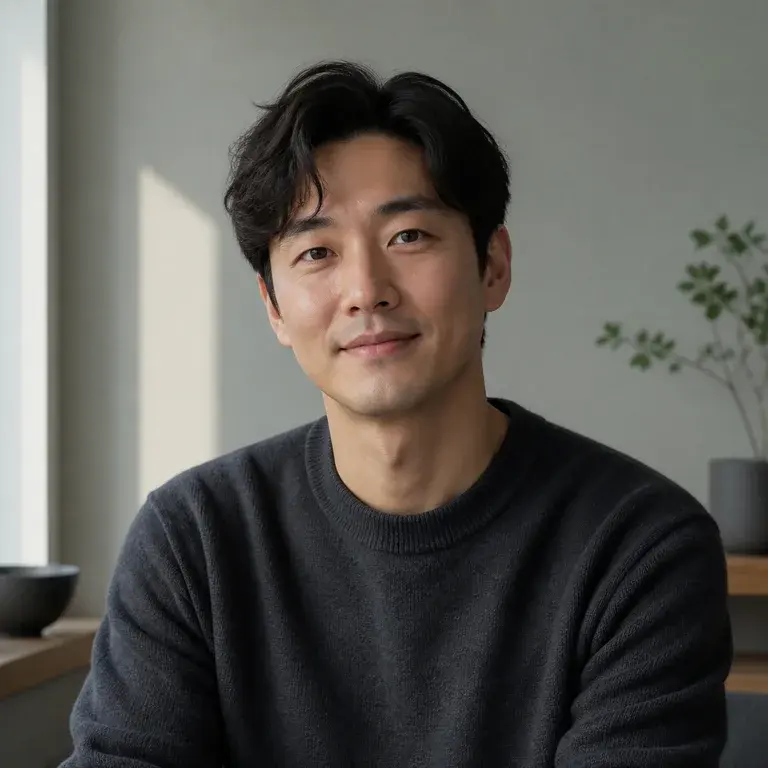
Generated editorial portrait example with soft natural light and a calm mood
Generated example | A portrait showing a possible visual direction

03 | Review and refine

Review results and refine your next prompt

Look at the colors and details in your generated image, then refine your next prompt. Signed-in users can revisit their history in My Creations. Each new generation uses credits; check the cost and download the files you want to keep before the retention period ends.

Review the result in the workspace
Revisit history in My Creations
Download files during the retention period
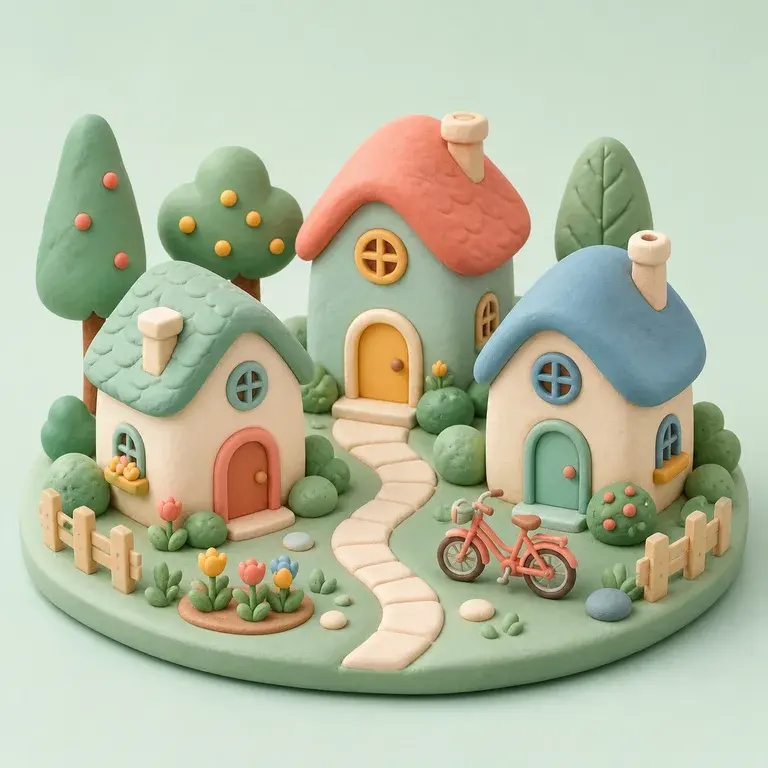
Generated clay-style miniature neighborhood with colorful buildings and rounded shapes
Generated example | Exploring color and style variations

AI Image

AI image generator models and credit costs

Compare the enabled models below, then choose one in the workspace. Available ratios, resolutions, reference options, and credit costs depend on the model.

Loading model catalog

Loading model catalog

Loading model catalog

AI-generated image examples for prompt ideas

Browse these examples for ideas about subjects and composition. Write your own description in the workspace above.

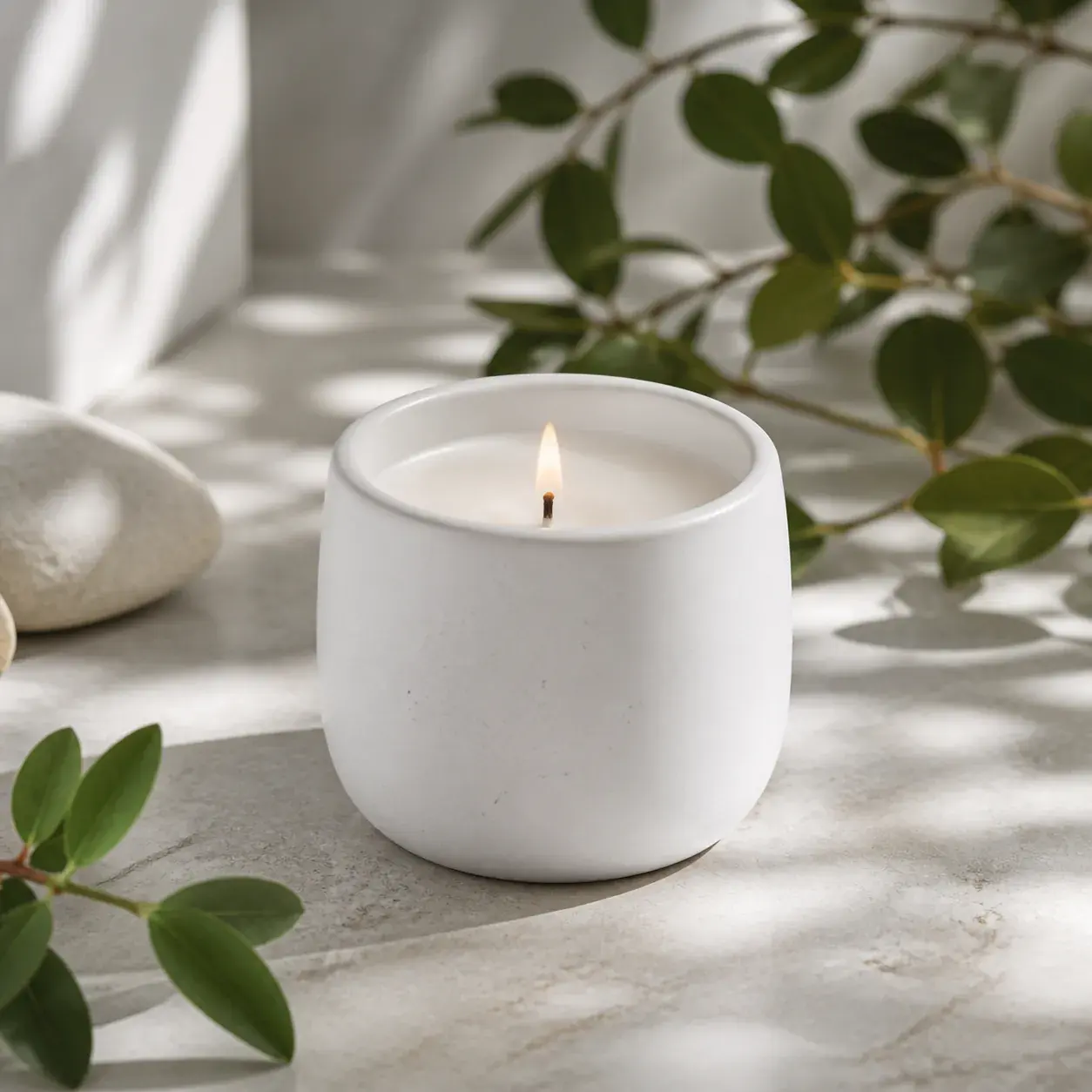
Product Photo

Product Photo

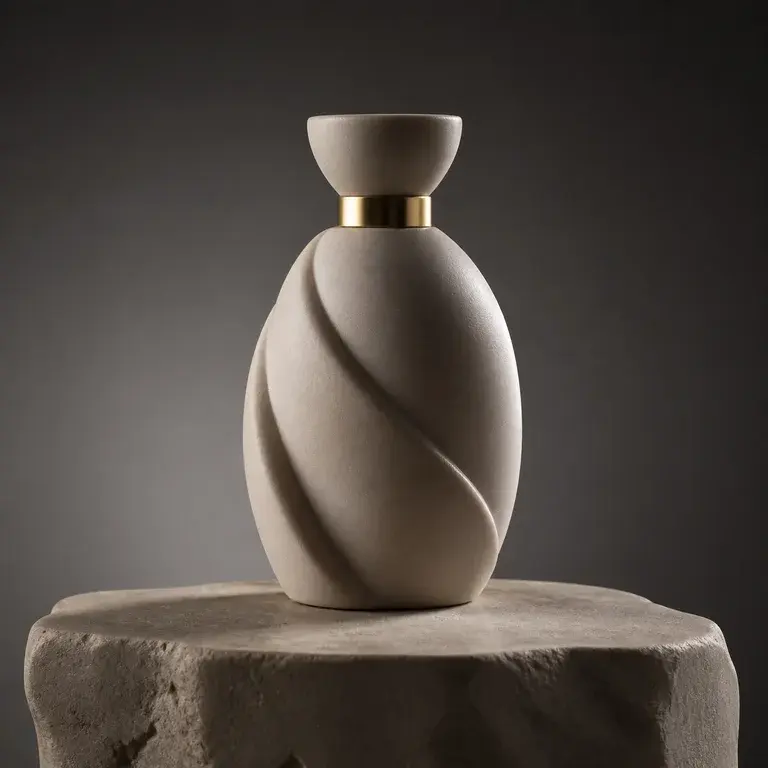
White ceramic candle on pale stone, soft daylight, clean premium commercial photography.

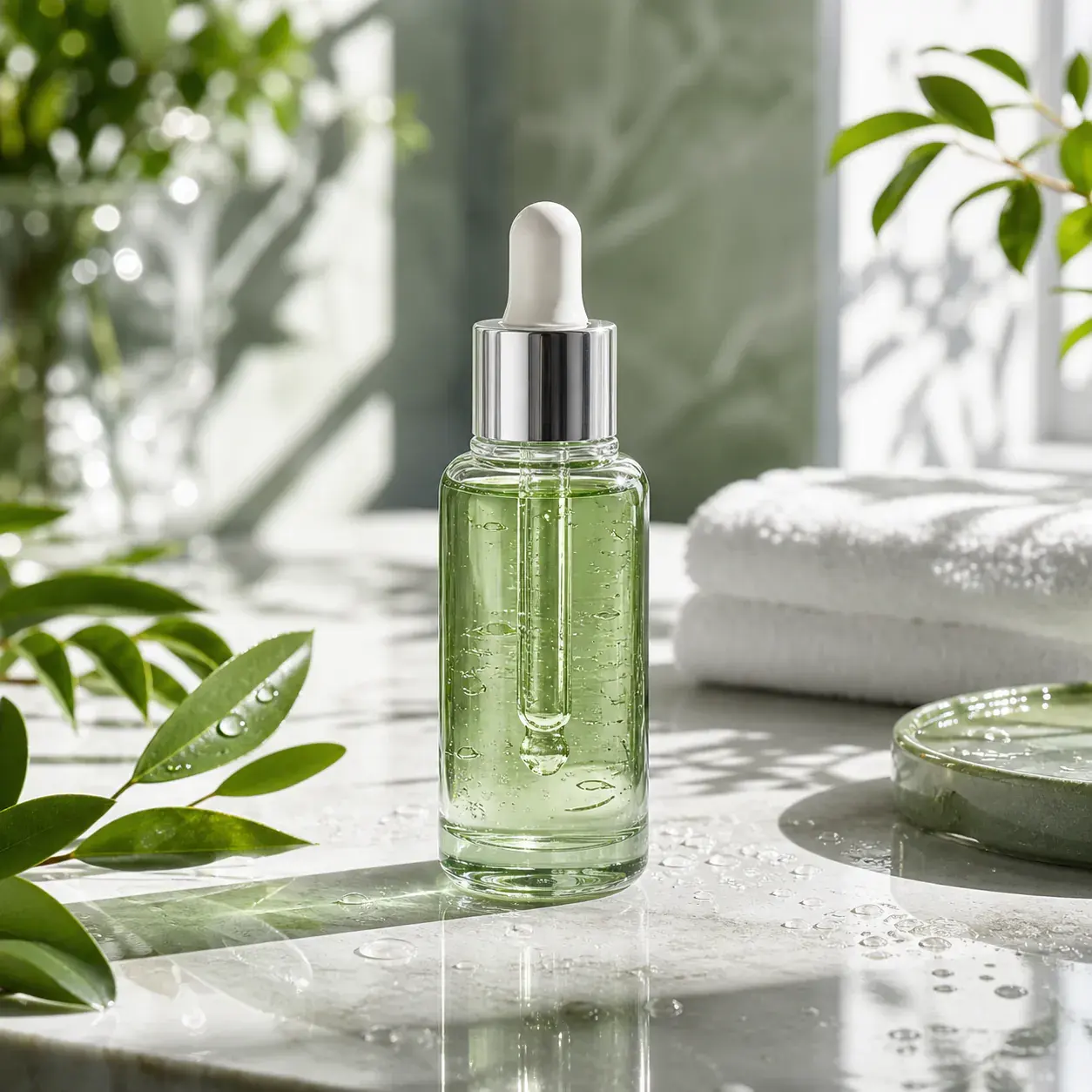
Skincare Scene

Skincare Scene

Fresh green serum bottle on stone counter, natural light, premium ecommerce campaign.

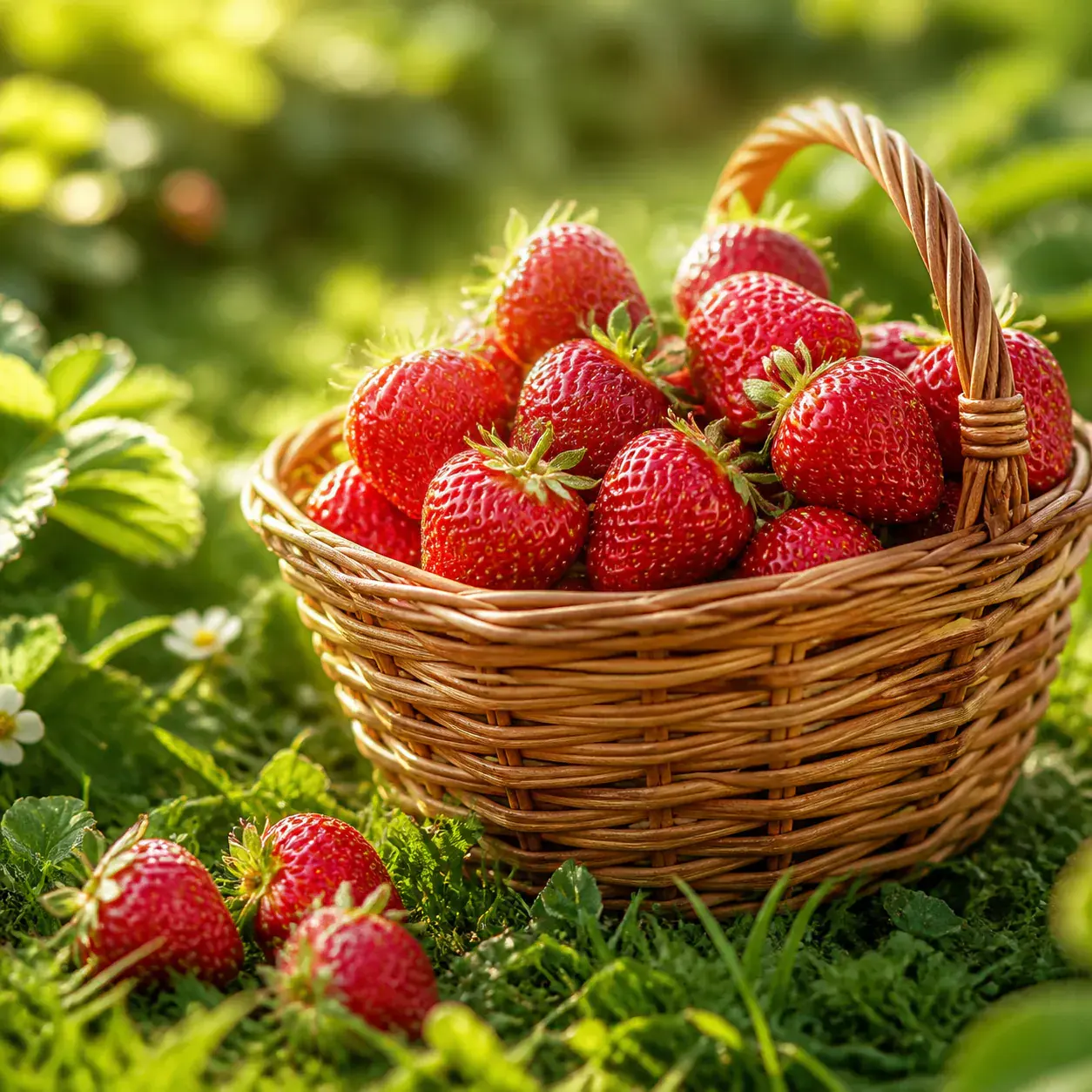
Food Social Post

Food Social Post

Fresh strawberries in a woven basket, warm daylight, cheerful food brand photography.

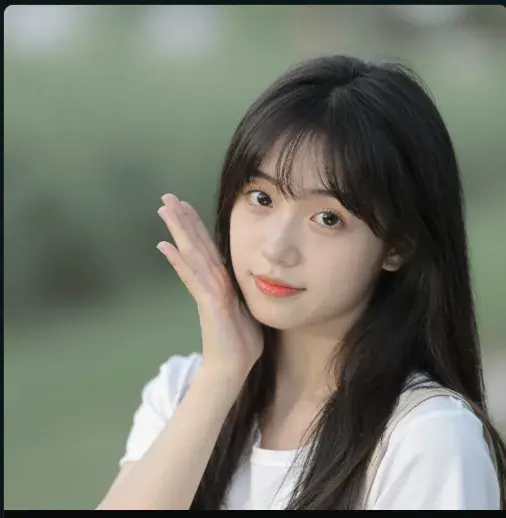
Natural Portrait

Natural Portrait

Soft natural-light portrait against a blurred green background.

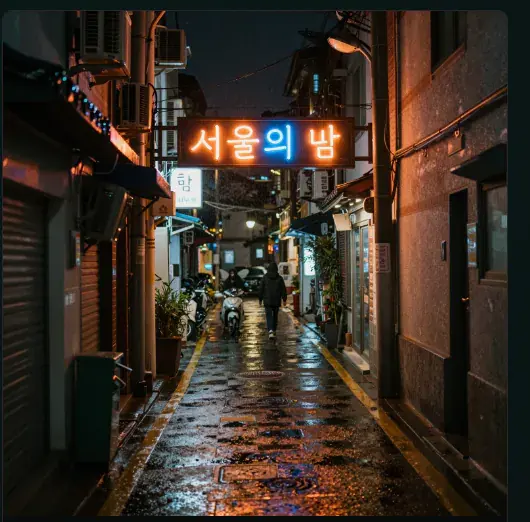
Seoul Neon Night

Seoul Neon Night

Rainy Seoul alley at night with neon signage and wet street reflections.

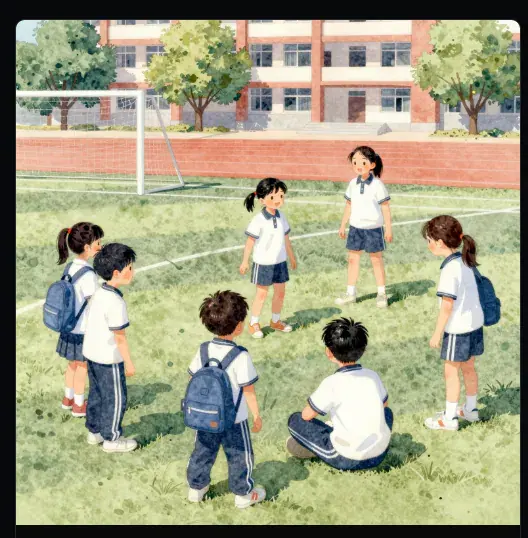
School Watercolor Scene

School Watercolor Scene

Warm watercolor illustration of students gathered on a school field.

How to get started

How to create AI images in three steps

  1. 1

    Describe your idea

    Sign in with Google. Write what you want to see, including the subject, setting, and details about lighting or colors. You can use AI Enhance to elaborate your text.

  2. 2

    Choose settings and check credits

    Select a model, aspect ratio, and available resolution. Add a reference image on supported models and check the credit cost. Eligible new accounts get 5 free credits once after a security check.

  3. 3

    Generate, review, and download

    Submit your prompt and review the single generated image. Download it or plan another prompt. You can revisit images in My Creations during the applicable retention period.

AI images for products, social posts, and illustrations

Product concepts

Explore realistic photo concepts before planning a shoot. Describe the materials, surface, lighting, and shadows, then review whether the generated details fit your idea.

Social media drafts

Try a vertical cover concept or a wide event graphic. Choose a matching aspect ratio and leave room in your composition for text you plan to add later.

Campaign mood boards

Compare color palettes and visual themes. Use AI image generation tools to discuss a visual direction with your team before committing to final assets.

Illustration ideas

Sketch out a story setting or a playful scene in words. Experiment with a style preset on Z Image Turbo and refine your description based on the output.

AI image generator questions and answers

What is an AI image generator?

An AI image generator creates an image based on your text prompt. ImgGenAI lets you select a model, write a description, adjust settings, and review the result. You can use reference images on specific models, or try AI Enhance and style presets to develop a prompt.

Is this AI image generator free to try?

You can try this free AI image generator with 5 credits: eligible new accounts get them once after Google sign-in and a security check. That can cover two separate Z Image Turbo generations at 2 credits each, or one Krea 2K image at 4 credits. Costs vary by model, resolution, and references. GPT Image 2 starts at 6 credits, so the trial balance does not cover it.

Which models are currently supported?

Enabled models include Z Image Turbo, Krea 2 Turbo, Nano Banana Beta, Wan 2.5 Image, Qwen Image Edit Plus, and GPT Image 2. Choose a model to see its available aspect ratios, resolutions, and exact credit cost.

Can I use my own photo as a reference?

Yes, on supported models. Upload JPG, PNG, or WebP files up to 10 MB each. Nano Banana Beta accepts up to 5 optional references; GPT Image 2 accepts up to 3. Qwen Image Edit Plus requires 1 to 3 reference images. Use only images you have permission to upload.

Which aspect ratios and image sizes can I choose?

Available ratios include 1:1, 16:9, 9:16, 3:2, 2:3, 3:4, and 4:3, with 4:5 on some models. All enabled models offer 1K resolution. Krea 2 Turbo and Qwen Image Edit Plus also offer 2K. The choices shown depend on your selected model.

Where are my images saved?

Your generation history is available in My Creations after sign-in. Image files may be scheduled for deletion after about 7 days for free access or about 90 days for paid access. Image retention is separate from credit validity. Download the images you want to keep.

Can I use the images commercially?

Commercial use depends on the Terms of Service and applicable law. Review them before publishing, and check any rights related to your prompt, reference images, and output. ImgGenAI does not guarantee that a generated image is cleared for commercial use.